
DWR · Monthly Targets App
User Guide
RICE West Nile · Staff Monthly Targets & Daily Work Record · Version 1.0, October 2026
App address: ricewn-dwr-targets.pages.dev
Contents
1What the app does
- Set your monthly targets — what you will do, the performance standard, the hours each time and how many times in the month.
- Record each day as activities, each with its own start and end time, linked to a target, with what was planned, what was implemented and any comment or output.
- See, as the month goes, the actual hours against each target and your percentage performance.
- Download the official two-sheet form — Staff Monthly Targets and Staff Daily Work Record — filled in, with all formulas and your signature.
- Keep working without internet; supervisors can view and download their staff's forms.
2Getting started
You need: a smartphone or computer, an email address you can open, and internet for the first visit.
- Open Chrome (Android) or Safari (iPhone) and go to ricewn-dwr-targets.pages.dev.
- Create your account or sign in (section 3).
- Add the app to your home screen: Android — ⋮ → Add to Home screen; iPhone — Share ⬆ → Add to Home Screen.

| Tab | Use it to |
|---|---|
| Today | Record a day's activities with times and targets. |
| Month | Set your monthly targets, follow your progress, find missing days and download the form. |
| Team | Supervisors only — view and download the forms of staff who report to you. |
| Profile | Name, job title, Staff ID, department, supervisor, usual hours and signature. |
The ? button at the top of the app opens this guide at any time.
3Create your account
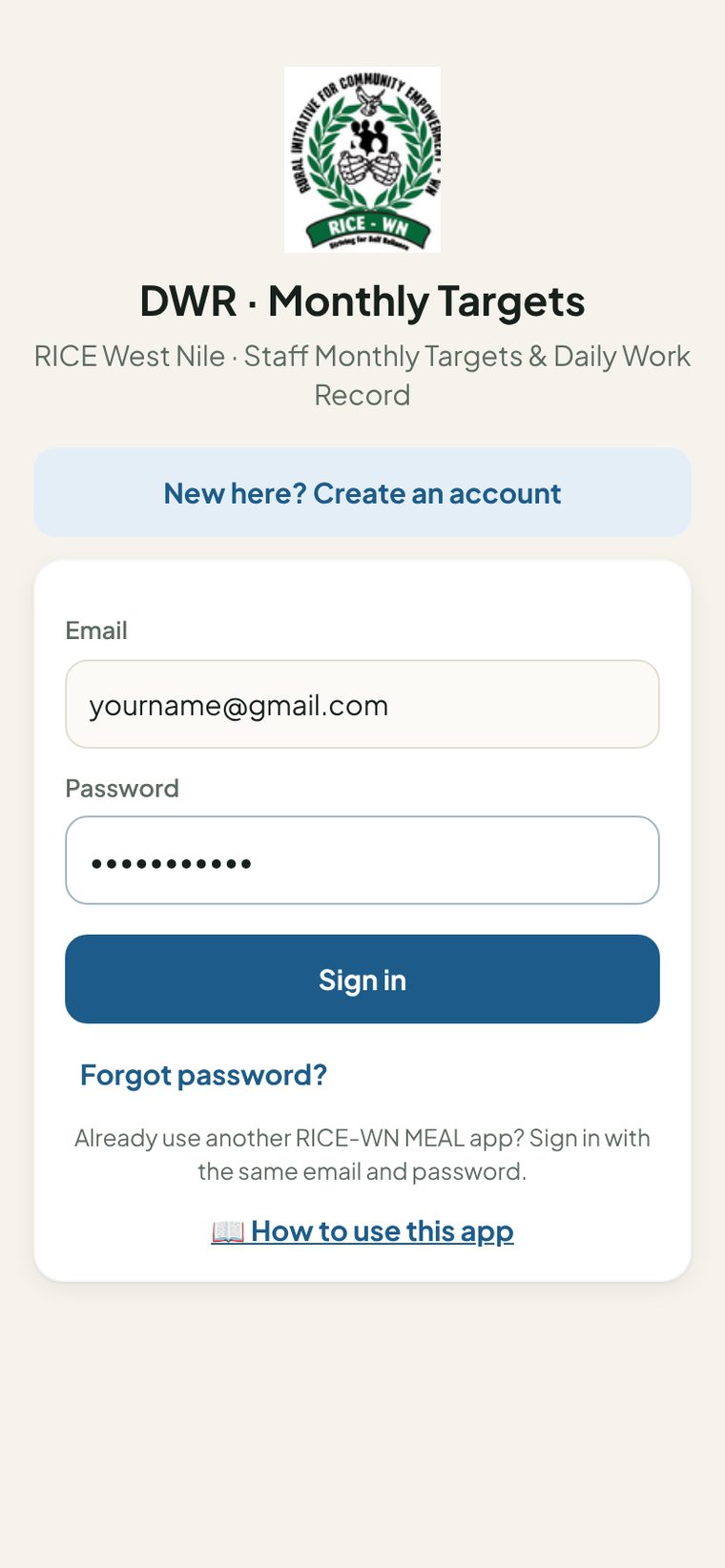
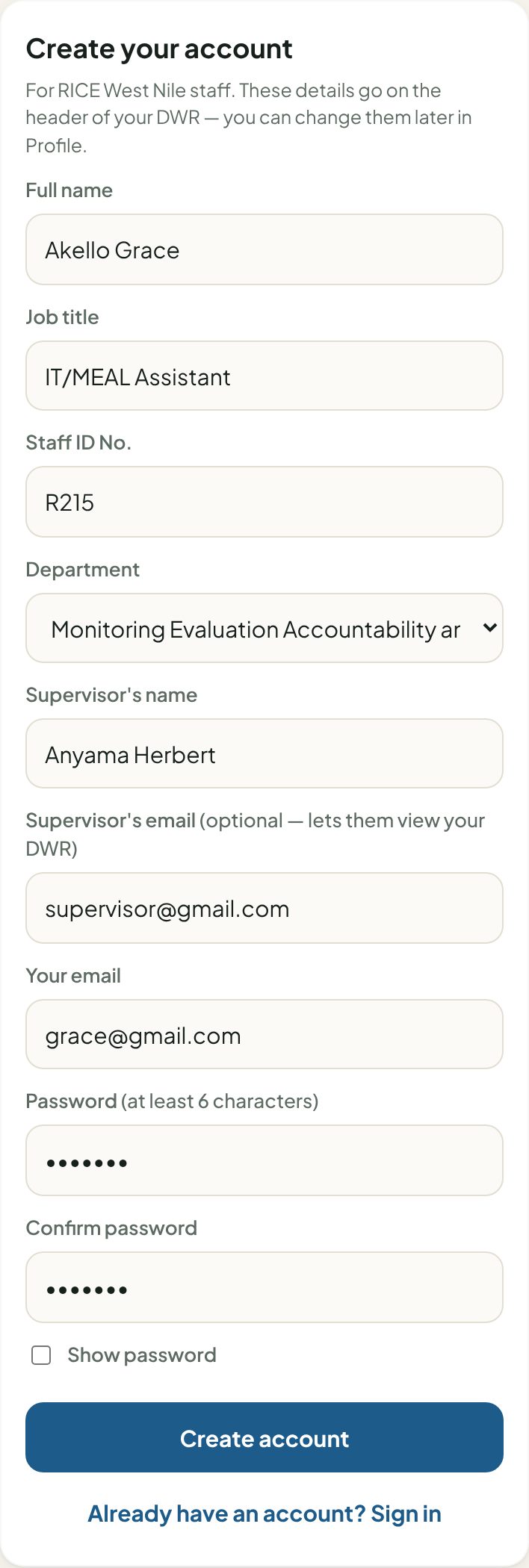
- Tap New here? Create an account.
- Enter your full name, job title and Staff ID No. exactly as they should appear on the form.
- Choose your department from the list (e.g. Monitoring Evaluation Accountability and Learning).
- Type your supervisor's name, and their email if you want them to view your form in the app.
- Enter your email and a password (at least 6 characters) twice, then tap Create account.
Forgot your password? Tap Forgot password?, enter your email, and follow the link sent to you.
4Your profile and signature
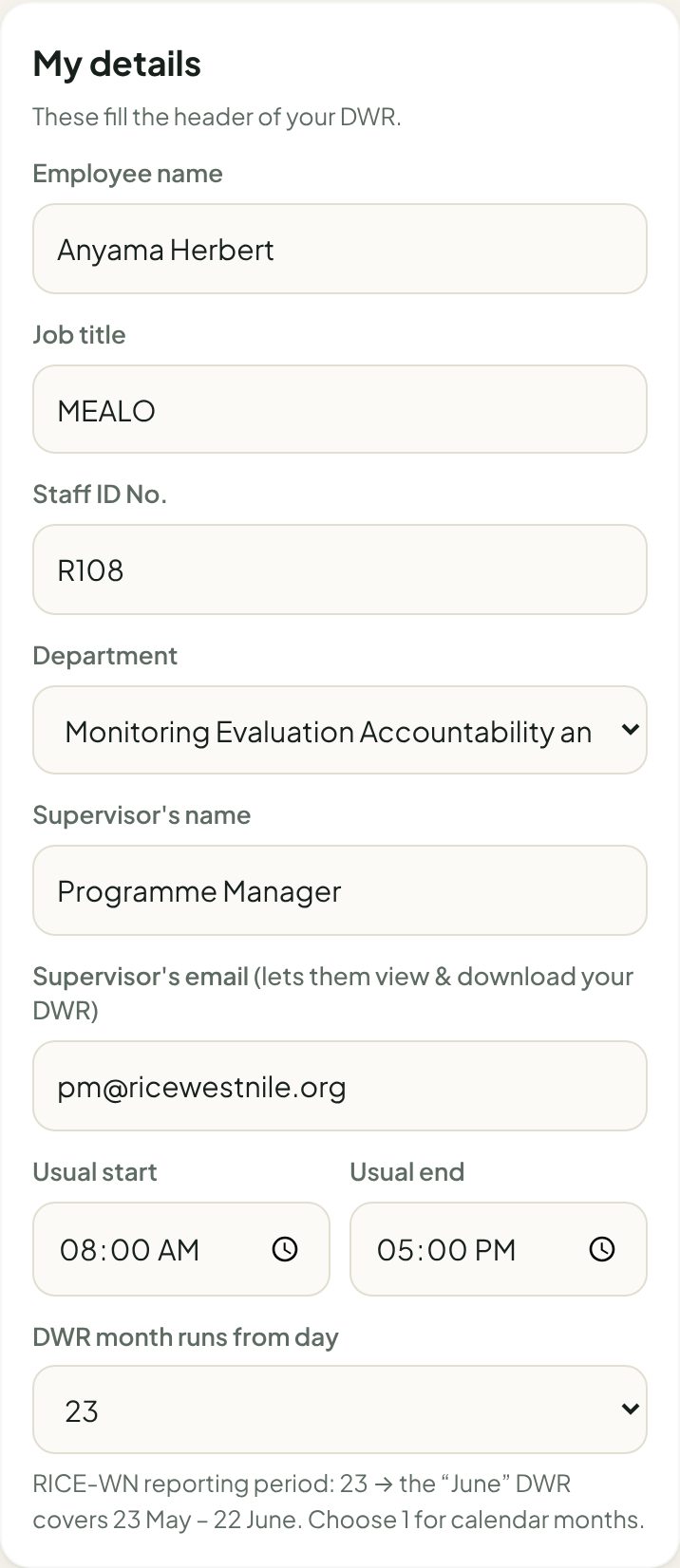
| Field | Where it appears on the form |
|---|---|
| Employee name, Job title, Staff ID No., Department | Header of both sheets |
| Supervisor's name | "Supervisor's Name" on the Monthly Targets sheet |
| Supervisor's email | Not printed — lets your supervisor see your form in the Team tab |
| Usual start / end | Used to pre-fill the first activity when you record an earlier day |
| DWR month runs from day | Leave at 23 — the reporting period is the 23rd to the 22nd |
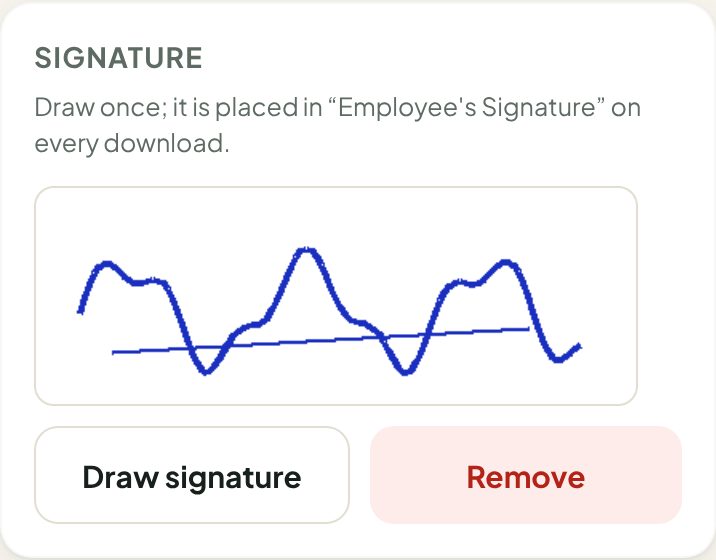
Signature: tap Draw signature, sign with your finger, tap Done → Save details. It is placed at "Employee's Signature" on both sheets of every download.
5Set your monthly targets
Do this at the start of each month, before recording days — activities are linked to these targets.
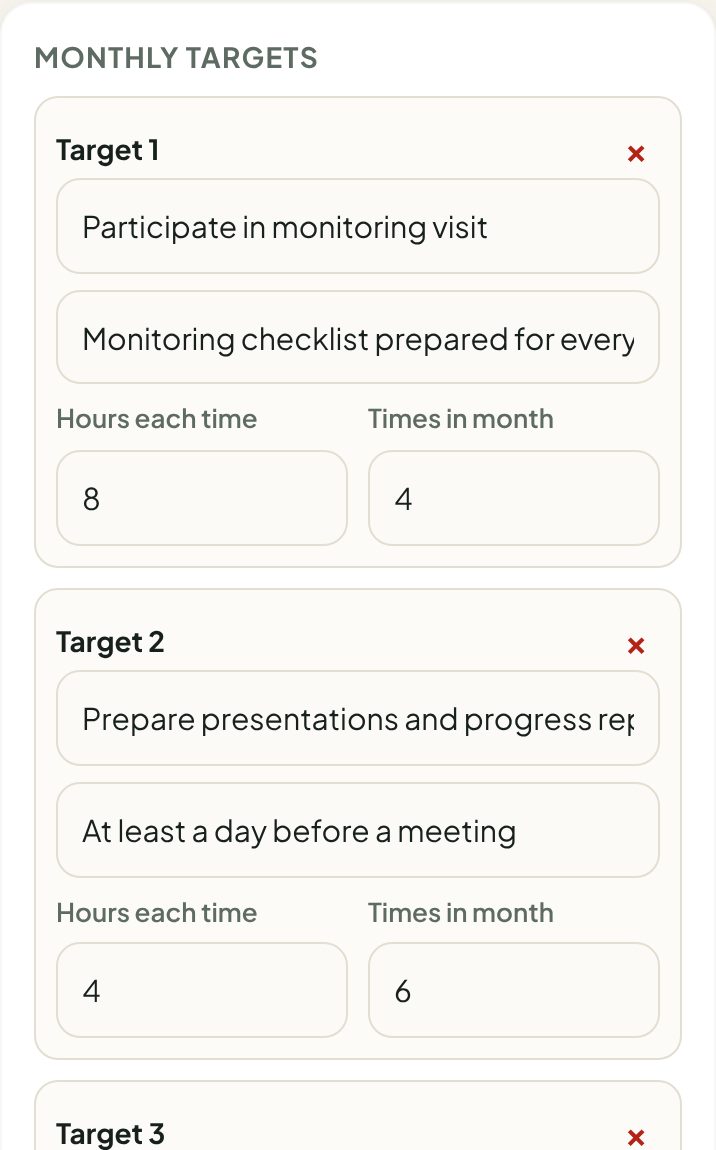
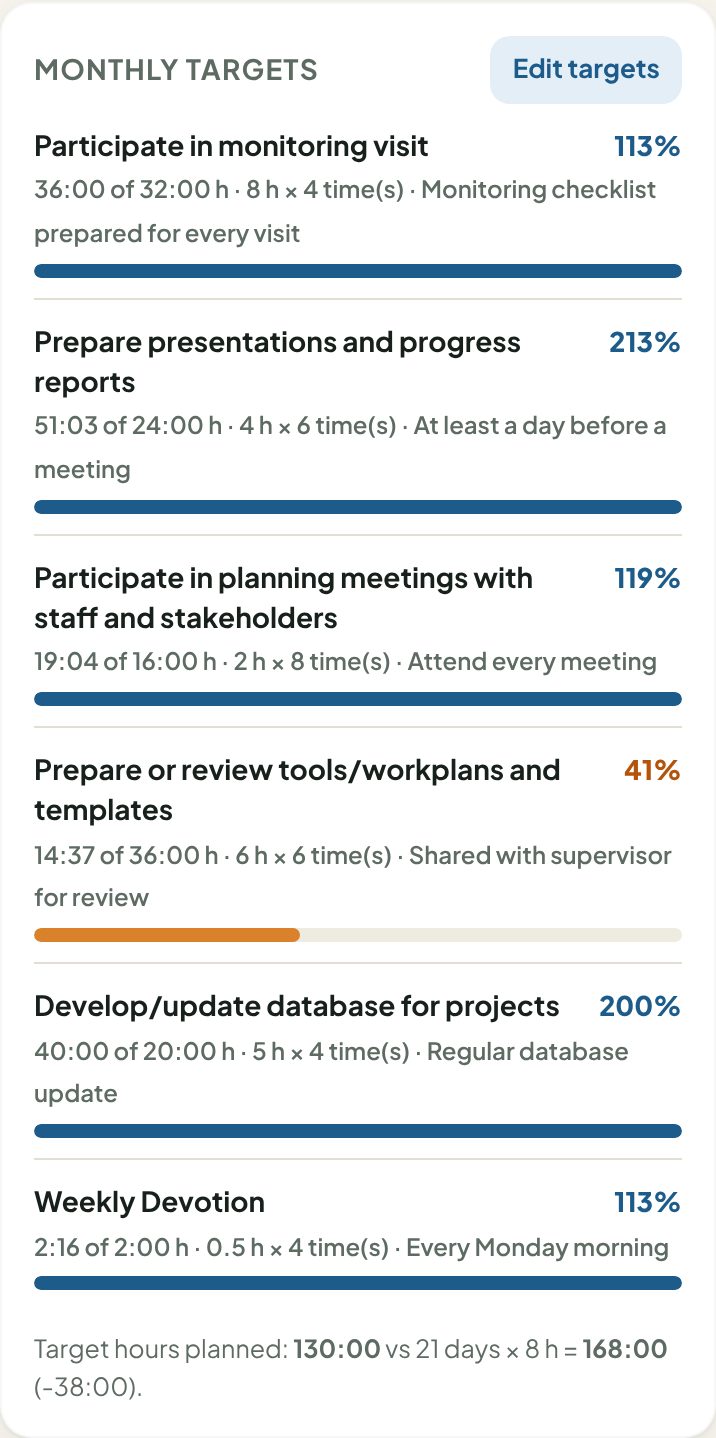
- Open Month, choose the month, tap Edit targets.
- Tap + Target for each one and fill: Target (e.g. Participate in monitoring visit), Performance standard (e.g. Monitoring checklist prepared for every visit), Hours each time and Times in month.
- Tap Save targets.
- From next month, tap Copy last month, adjust the numbers and save.
| On the card | Meaning (same as the form) |
|---|---|
| x of y h | Actual hours recorded against the target, out of the estimate (hours each time × times in month) |
| % and bar | Percentage performance for the month (orange below 100%) |
| Target hours planned vs days × 8 h | Whether your targets add up to your working hours for the month |
6Record your day
Use the Today tab. Each piece of work is one activity. Record activities as you go, or at the end of the day.
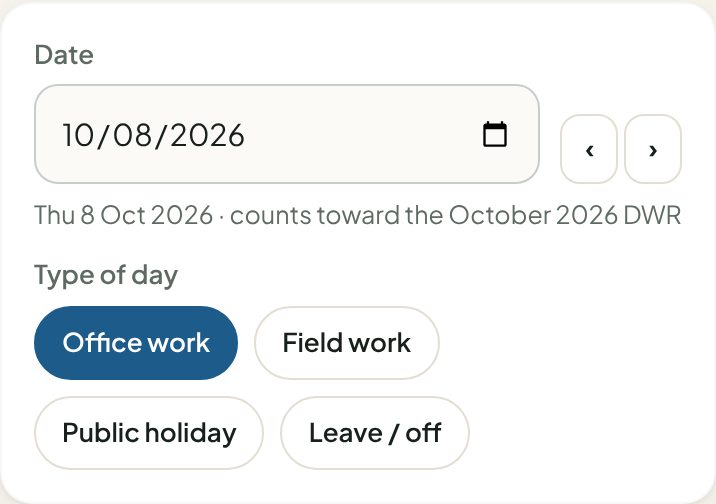
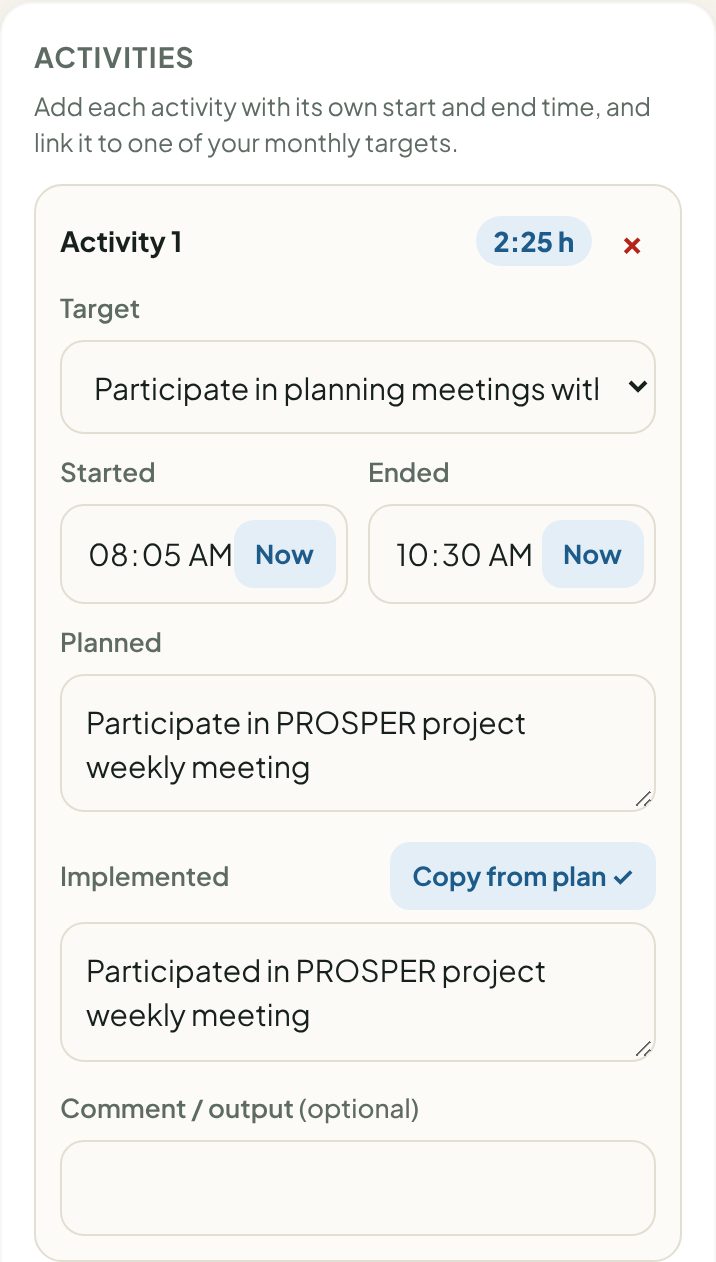
- Date — today is selected; use ‹ › or tap the date for another day. Type of day — Office work or Field work.
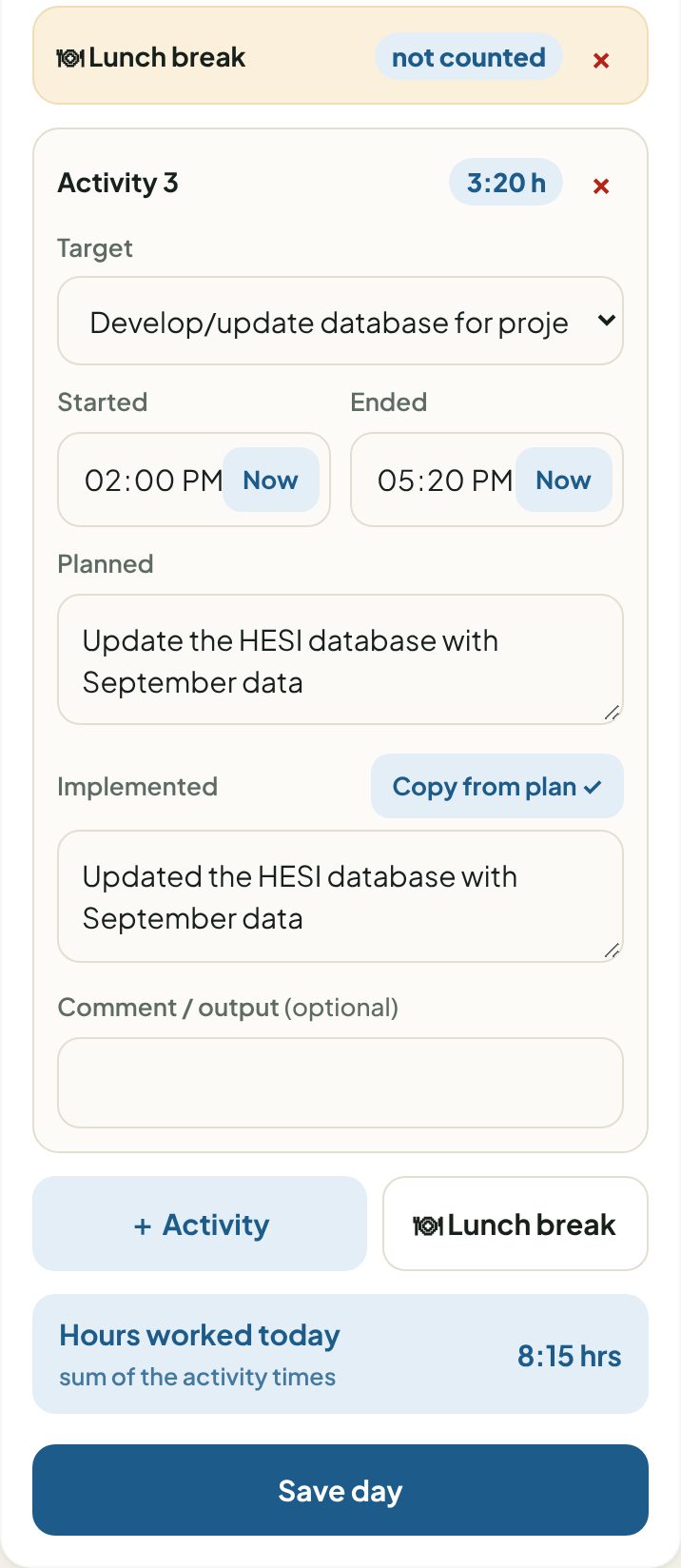
- For the first activity choose the Target, set Started and Ended (tap Now), and write what was Planned.
- Tap Copy from plan ✓ to fill Implemented in the past tense, then edit it to show what really happened. Add a comment / output if useful (e.g. Draft shared with PM).
- Tap + Activity for the next piece of work — its start is filled from the last end time.
- Tap 🍽 Lunch break where lunch falls; the next activity then starts at 2:00 PM.
- Check Hours worked today and tap Save day.
Public holidays and leave
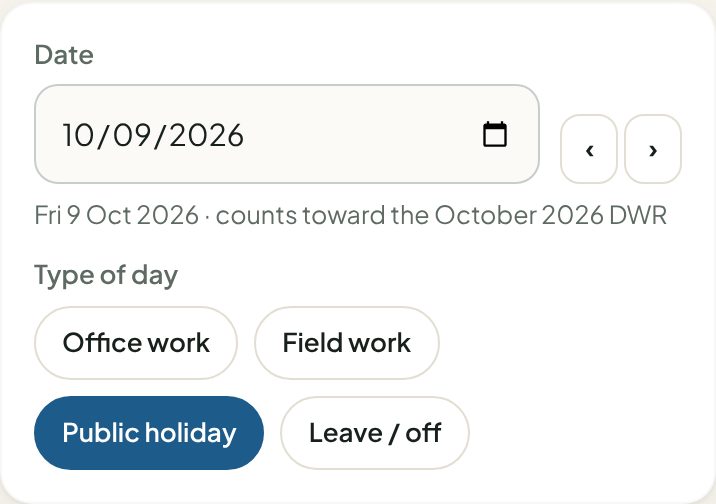
Choose Public holiday or Leave / off. The activity list is replaced by one text box — type e.g. Public Holiday (Heroes' Day) or Annual leave — and the day counts 0 hours.
Change or delete a day
Open the date (or tap it in the Month tab), change any activity and tap Update day, or tap Delete. Remove an activity with its ×.
7How hours are counted
Hours for a day = the sum of (Ended − Started) for every activity. The lunch-break line has no times and counts nothing — exactly like the "Total Duration" and "Total hours worked in a day" columns of the form.
| Activities | Hours |
|---|---|
| 8:05–10:30 meeting · 10:30–1:00 report · lunch · 2:00–5:20 database | 8:15 |
| 8:00–8:30 devotion · 8:30–1:00 monitoring visit · lunch · 2:00–5:15 report | 8:15 |
| Full-day field visit 8:00–6:00 (one activity, no lunch line) | 10:00 |
| Public holiday / leave | 0:00 |
Each activity's hours are also added to its target — that is how the "Actual performance in hours" column on the Monthly Targets sheet is filled.
8Your month and the download
The reporting period: 23rd to 22nd
| Month on the form | Covers |
|---|---|
| October 2026 | 23 September – 22 October 2026 |
| November 2026 | 23 October – 22 November 2026 |
| December 2026 | 23 November – 22 December 2026 |
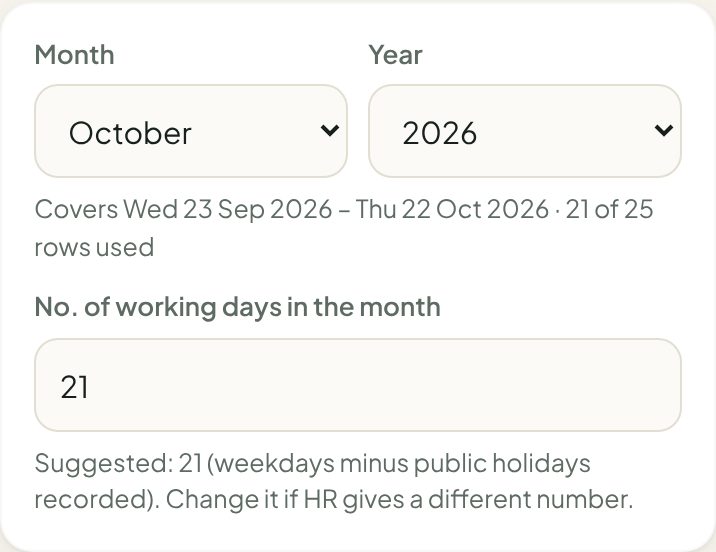
- Choose the month and year; check No. of working days (suggested: weekdays minus public holidays; change it if HR gives another number).
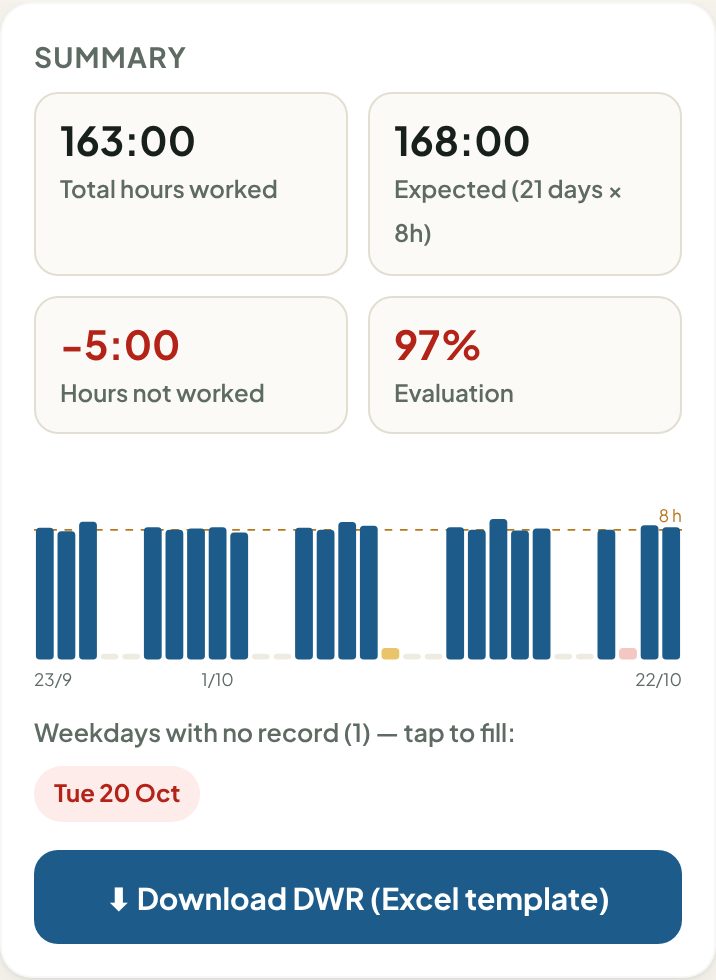
- Review the Monthly targets card (section 5) and the Summary: total hours worked, designated hours (days × 8), extra or missing hours, evaluation.
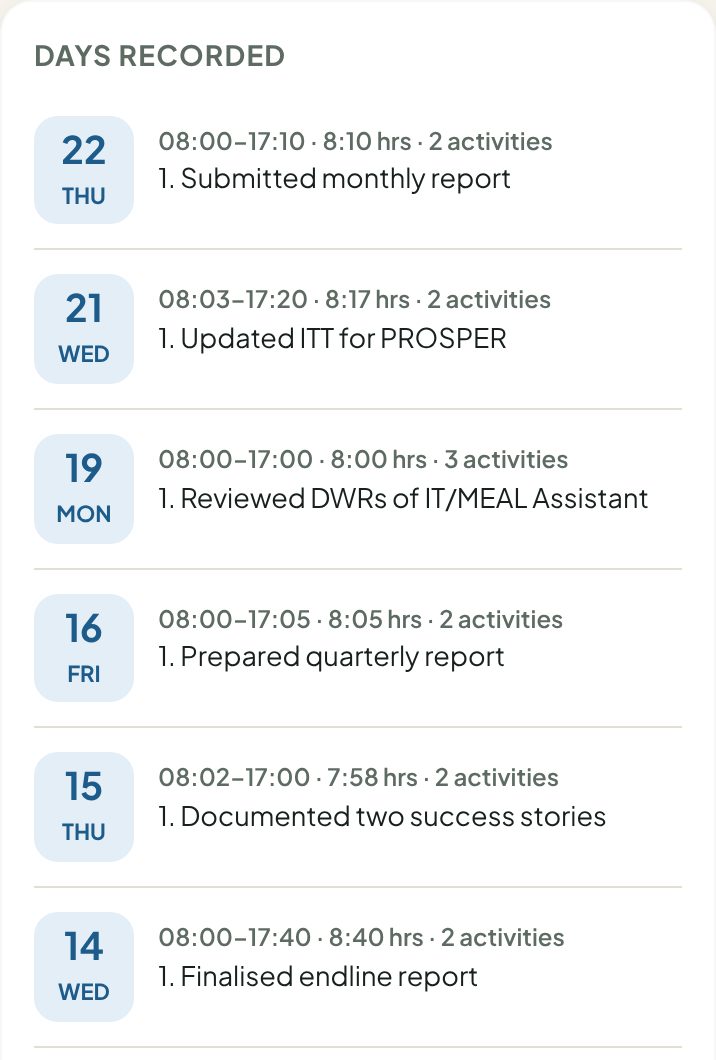
- Fill any weekdays with no record listed in red — tap one to open it.
- Tap ⬇ Download DWR. The file (e.g. Herbert_DWR for October 2026.xlsx) is saved to your phone's Downloads.
| In the downloaded file | What is filled |
|---|---|
| Staff Monthly Targets sheet | Header, your targets with standards, hours and times; estimated hours/days, actual hours and % performance per target, totals and evaluation; your signature; supervisor's name |
| Staff Daily Work Record sheet | Header; for every day: date, each activity line (planned, implemented, target, times, duration, comments), lunch line, daily total; monthly total, designated hours, hours not worked, extra hours; your signature |
Open the file to check it, then pass it to your supervisor for comments and signature, and on to HR and Finance.
9Working without internet
| Works offline | Needs internet |
|---|---|
| Opening the app, recording and editing days, editing targets, Month summary, downloading the form | Creating an account, first sign-in on a phone, the Team tab, syncing |
- The label at the top shows Online, Offline or Syncing…. Days and targets saved offline are sent automatically when the connection returns.
- Open the app once with internet on each phone so it can store itself.
10For supervisors
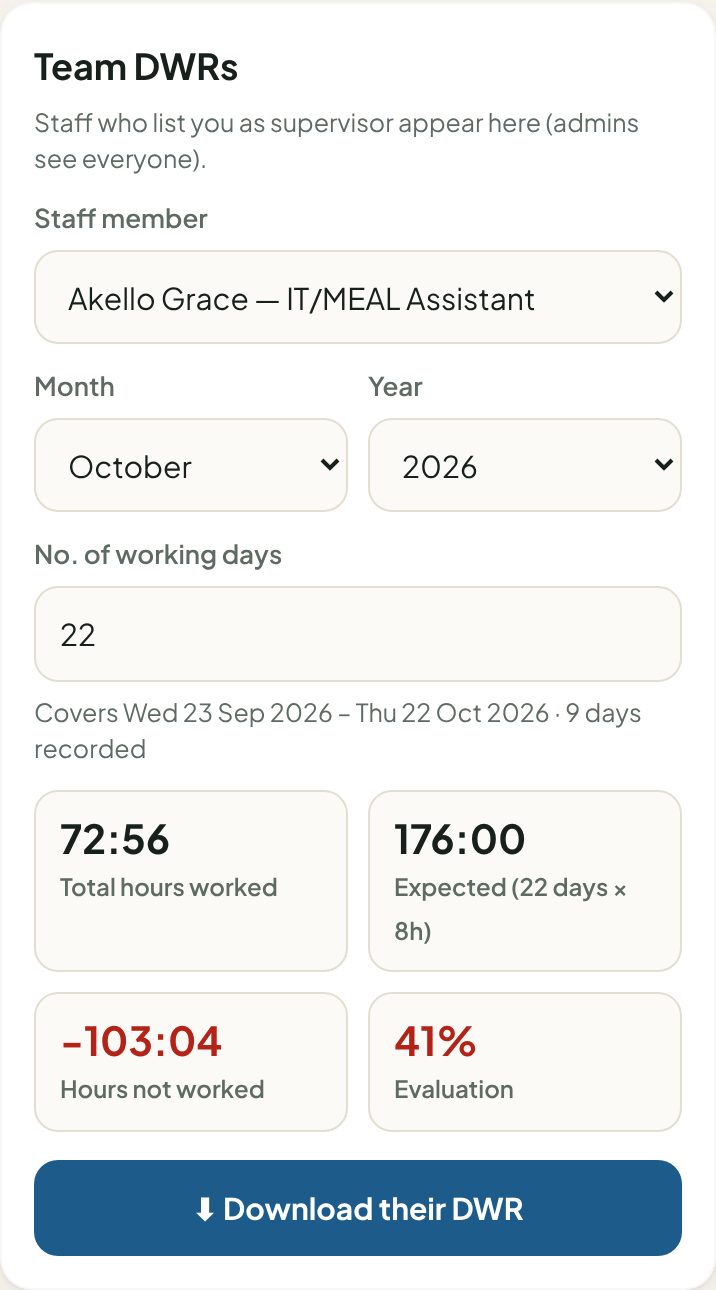
The Team tab appears when staff enter your email as "Supervisor's email" in their profile (portal administrators see everyone). Choose the staff member, month and year, review the summary and days, and tap ⬇ Download their DWR — you get their full two-sheet form, including their targets. Supervisors can view but not change records.
11Good practice
- Set targets on the first working day of the period (the 23rd), or copy last month's.
- Make targets add up: the card shows target hours vs working days × 8.
- Record activities the same day — times are then accurate.
- Link every activity to a target; use Any other duty assigned for unplanned tasks.
- One activity = one piece of work; start with an action word and name the project (PROSPER, HESI, Bidi Bidi…).
- Use Comment / output for results: "Report shared with PM", "3 groups visited".
12Problems and answers
| Problem | What to do |
|---|---|
| "No targets set for this month yet" | Month → Edit targets (or Copy last month) → Save targets, then return to Today. |
| An activity counts toward no target | Open the day, choose a Target for that activity, tap Update day. |
| A target shows 0% though I worked on it | The activities are linked to a different target name. Open those days and pick the right target. |
| "You already have an account with this email" | Sign in with that password, or tap Forgot password?. |
| A day is in the wrong month | The period is 23rd–22nd: 23 October belongs to November's form. |
| "The form allows 10 lines per day" | Combine small related tasks into one activity. |
| The download doesn't open | Look in Files → Downloads; install Microsoft Excel or WPS Office. |
| My supervisor can't see my form | Profile → check "Supervisor's email" → Save details. |
| I changed phones | Sign in on the new phone — all synced records and targets are there. |
13Getting help
For help with the app, accounts or the form, contact the MEAL Office, RICE West Nile Head Office (MEAL Officer: Anyama Herbert). Say which phone you use, what you tapped and what message appeared — a screenshot helps.
RICE West Nile · DWR Monthly Targets App · User Guide v1.0 · October 2026